




आईफोनमा बारम्बार स्थानहरू कसरी हेर्ने?

Your iPhone can use location information to understand the places you visit regularly. This information can support personalized features, location-based suggestions, and other system services. However, if you want to check where your iPhone thinks you frequently go, the relevant setting isn’t immediately visible in the main Settings menu.
Depending on your iOS version, you may see this feature referred to as Significant Locations rather than Frequent Locations. It is part of Apple’s Location Services system and can show locations or areas that your iPhone considers important based on your visits.
Whether you’re curious about your location history or want to check why your iPhone is recognizing certain places, accessing this information only takes a few steps. In this guide, we’ll explain what Frequent Locations mean, show you how to find them on your iPhone, and introduce
a bonus solution for changing or managing your iPhone’s GPS location.

1. What Do Frequent Locations Mean?
बारम्बार स्थानहरू refers to places that your iPhone identifies as locations you visit regularly. On newer versions of iOS, Apple generally refers to this feature as Significant Locations ।
Your iPhone can use location information to recognize places that are important to your daily routine, such as your home, workplace, favorite shops, restaurants, or other regularly visited areas.
In short, Frequent or Significant Locations:
- Record places you visit regularly.
- Help iOS provide personalized location-based features.
- Are managed through Location Services.
- May display locations and areas associated with your activity.
- Can be reviewed or cleared through your iPhone’s settings.
The feature should not be confused with a complete record of every location your iPhone has visited. The information available through Significant Locations is intended primarily for personalized system services rather than providing a detailed, day-by-day GPS timeline.
2. How to See Frequent Locations on iPhone?
If you want to check your Frequent Locations, follow these steps. The exact wording and layout can vary slightly depending on your iOS version.
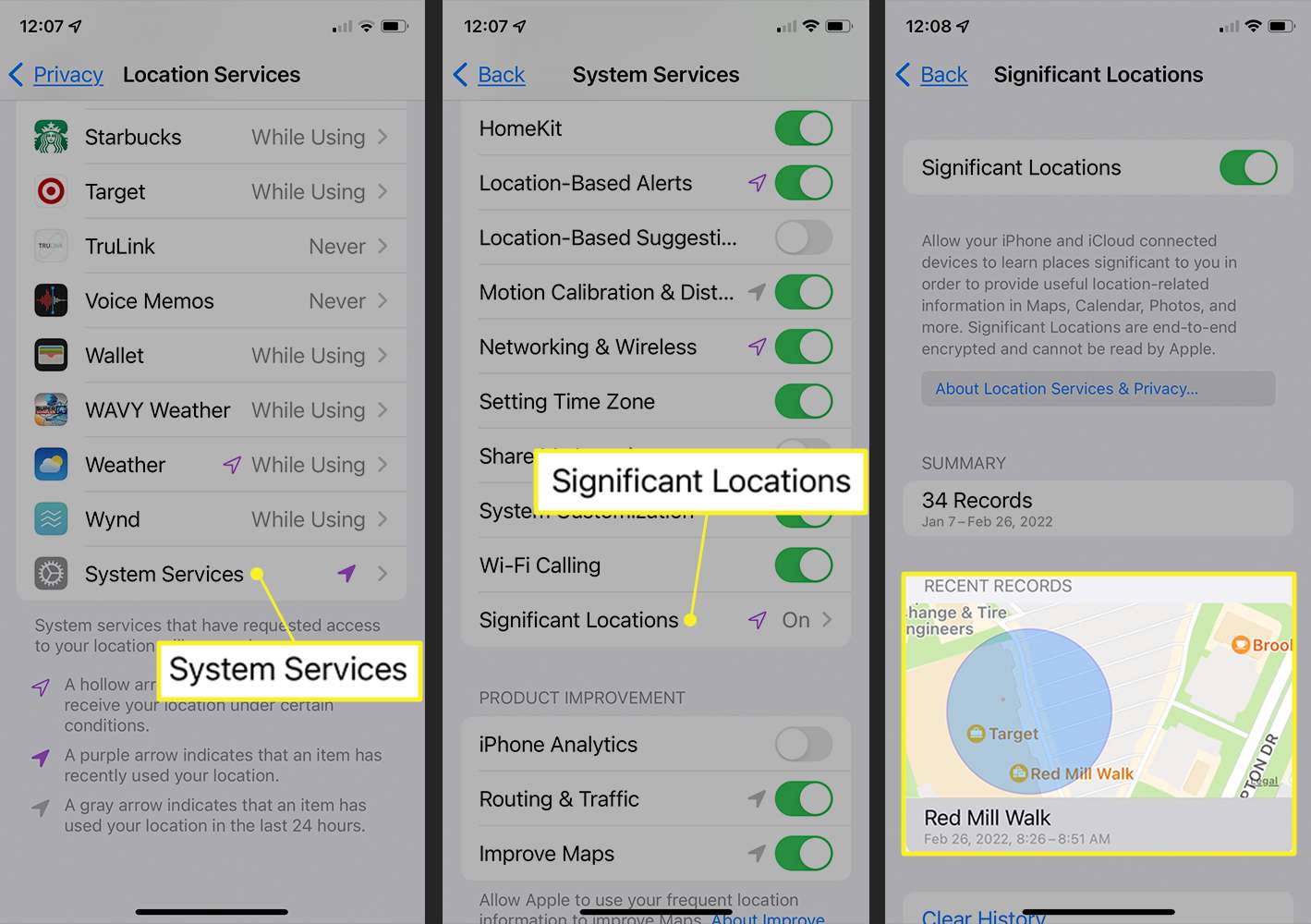
- Launch the सेटिङहरू app on your iPhone, s croll down and tap गोपनीयता र सुरक्षा ।
- ट्याप गर्नुहोस् स्थान सेवाहरू . Make sure Location Services is turned on so your iPhone can use location information.
- Scroll to the bottom of the Location Services screen and tap प्रणाली सेवाहरू ।
- Look for Significant or Frequent Locations । Tap it and authenticate with Face ID, Touch ID, or your passcode if requested.
- After authentication, you can review the significant locations available on your iPhone.
3. Bonus: Fix iPhone Location with AimerLab MobiGo
Sometimes, the reason users check their iPhone’s frequent locations is that the device is showing an incorrect or inaccurate GPS position. If your iPhone location appears to be stuck, inaccurate, or different from your actual position, you can first try standard troubleshooting methods such as restarting the device, checking Location Services, and ensuring that the relevant app has location permission.
For users who need more control over their device’s GPS position, AimerLab MobiGo provides another option. It is a desktop-based location tool that allows you to change the virtual GPS location of an iPhone and simulate movement between different locations.
Rather than manually moving from one location to another, MobiGo lets you select a destination on an interactive map and apply that location to a connected mobile device.
AimerLab MobiGo का मुख्य विशेषताहरू:
- Change GPS location: Set your iPhone’s virtual location to a selected destination.
- Teleport mode: Quickly move the simulated GPS position from one place to another.
- GPS movement simulation: Create routes and simulate movement between locations.
- Adjustable speed: Customize simulated movement speeds.
- Interactive map: Search for locations and select destinations directly from the map.
How to Use MobiGo to Change iPhone Location:
- Download and install AimerLab MobiGo on your Windows or Mac computer.
- Launch MobiGo and connect your iPhone to the computer using a USB cable. Follow the instructions provided by the software to establish the connection.
- Once your iPhone is connected, choose “Teleport Mode” and open the map in MobiGo. Search for an address, city, or destination where you want to set the virtual location.
- Confirm the selected location and start the process. MobiGo will change the virtual GPS position of your connected iPhone to the selected destination.
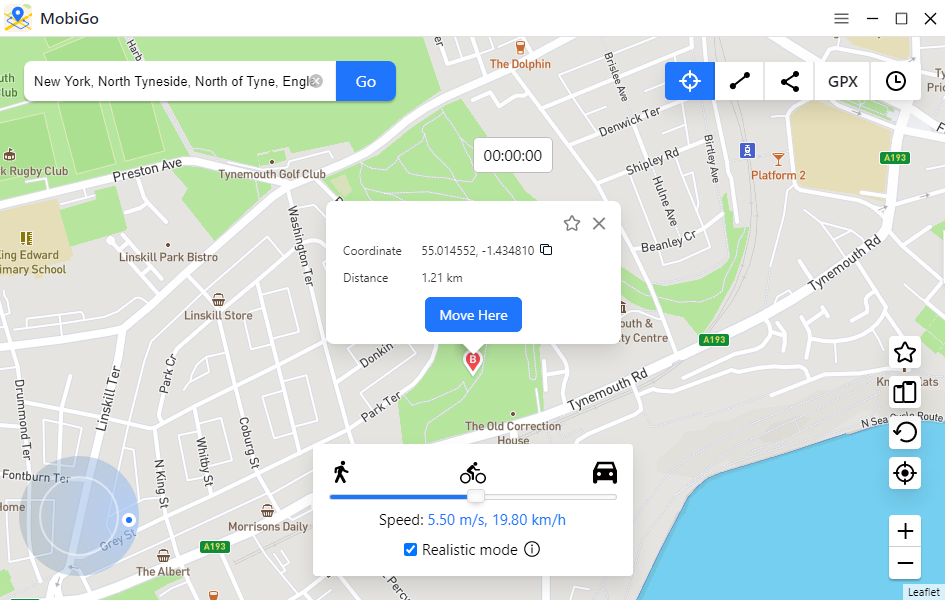
MobiGo can also simulate movement if you don’t want to simply teleport between locations. You can create a route between destinations and adjust the movement speed, making it useful for testing location-based applications and other scenarios where simulated GPS movement is needed.
4. निष्कर्ष
Finding Frequent Locations on an iPhone is relatively simple once you know where to look. Go to Settings > Privacy & Security > Location Services > System Services > Significant Locations, then authenticate to access the available information. Because Apple regularly updates iOS, the exact names and menu layout may differ slightly on your device.
If you’re checking Frequent Locations because your iPhone is reporting an incorrect GPS position, standard troubleshooting may solve the problem. However, if you need a convenient way to change or simulate your iPhone’s GPS location, AimerLab MobiGo is a useful tool to consider.
With features such as one-click location changes, route simulation, adjustable movement speeds, and an interactive map, MobiGo gives you greater control over your device’s virtual location. For users who want more than the basic location options provided by iOS,
AimerLab MobiGo
is a recommended solution for managing and changing iPhone GPS locations.
- आईफोनमा पोकेमोन गोलाई कसरी स्पूफ गर्ने?
- Aimerlab MobiGo GPS स्थान स्पूफर को सिंहावलोकन
- तपाईको आईफोनमा स्थान कसरी परिवर्तन गर्ने?
- iOS को लागि शीर्ष 5 नक्कली GPS स्थान स्पूफरहरू
- GPS स्थान खोजकर्ता परिभाषा र स्पूफर सुझाव
- Snapchat मा आफ्नो स्थान कसरी परिवर्तन गर्ने
- iOS उपकरणहरूमा स्थान कसरी फेला पार्न/साझेदारी/लुकाउने?